
Adding a product in PrestaShop 9
How to Add a Product in PrestaShop 9 - Complete Step-by-Step Guide
Adding products in PrestaShop 9 is one of the most common tasks when setting up an online store. In this guide, I'll walk you through the entire process—from selecting product type, through entering data, images, and inventory, to adding additional features and associations.
1. Entering the product panel
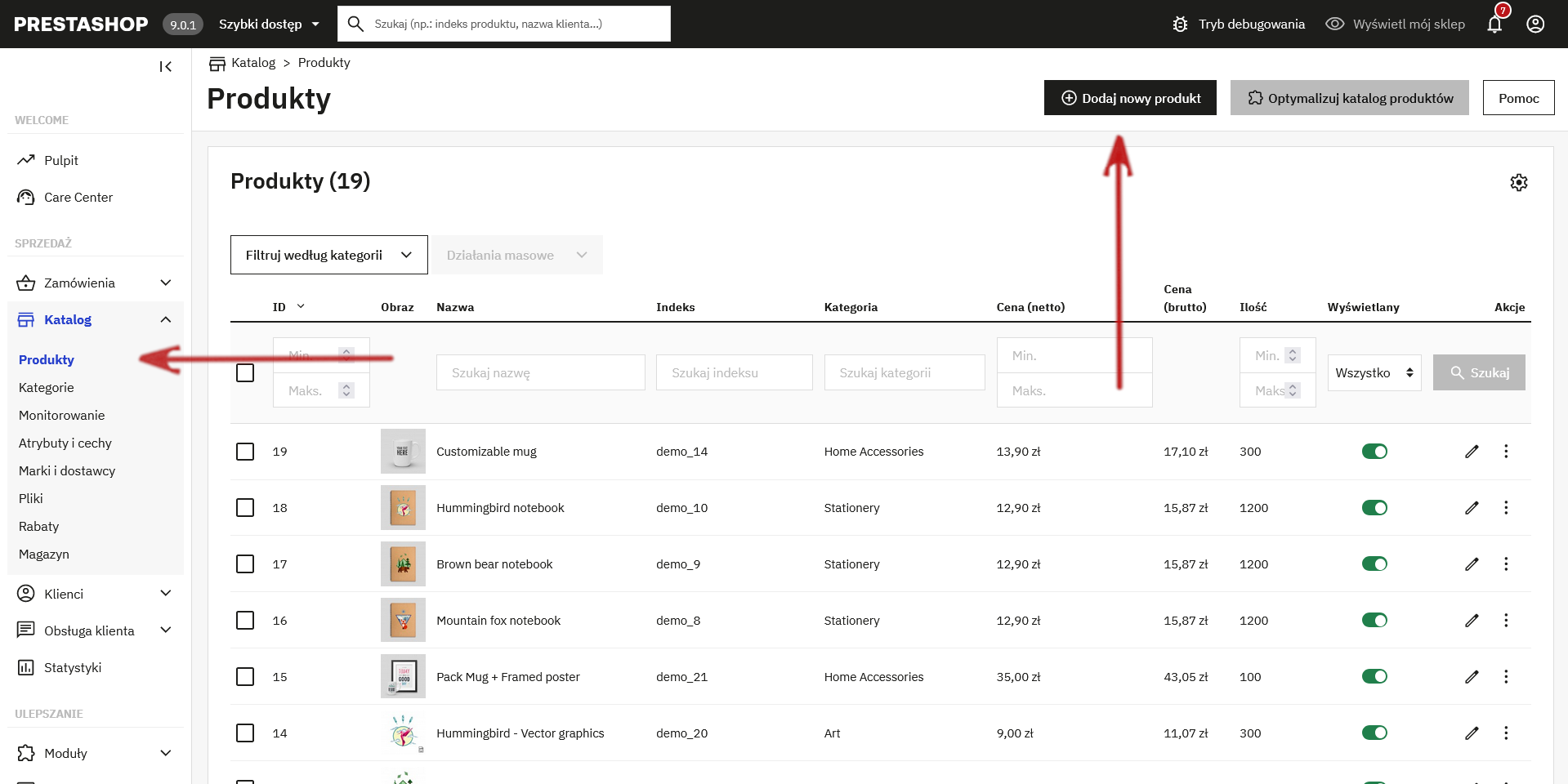
To start adding a new product, log in to your PrestaShop 9 administration panel and go to the section:
- Sale > Catalog > Products
In the product list, you'll see a table with current items—ID, name, category, stock status, and price. In the upper right corner, there's a button for adding a new product.
2. Start creating your product
Click the button + Add a new productA wizard will open, allowing you to specify all the details for your new product step by step.
The first step is to choose product typeIn PrestaShop 9 you can choose:
- Standard product – physical goods to be shipped, e.g. a T-shirt or mug;
- Virtual product – service or file to download;
- Product with variants – e.g. different sizes or colors;
- Product Package – a set of several products sold as one offer.
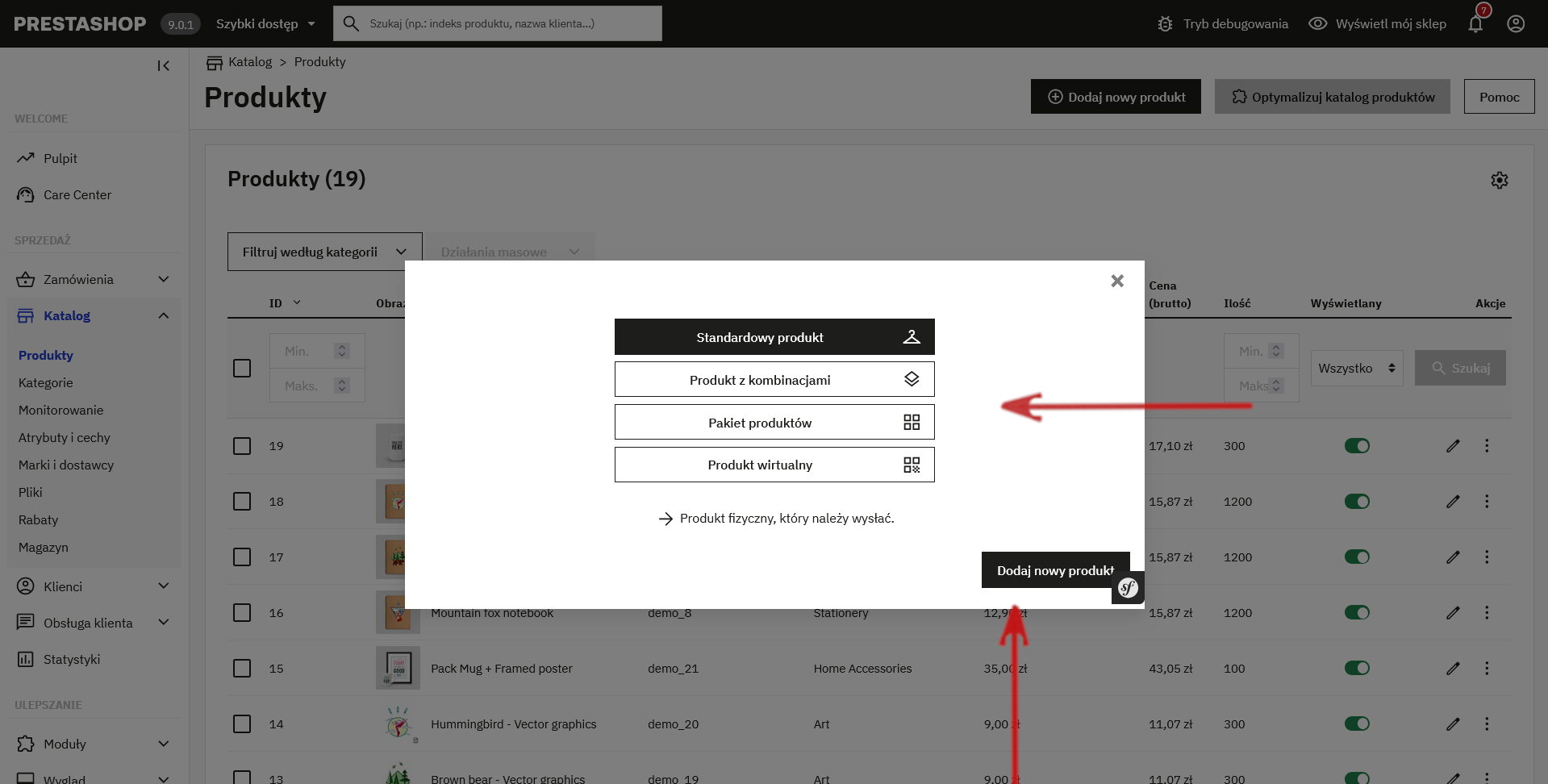
Select the appropriate type and continue.
3. "Basic Information" Tab
Enter the most important product data:
- Product name – clear and correct name;
- Status – is the product supposed to be active?
- Short description – displayed e.g. in product lists;
- Full description – detailed description visible on the product card;
- Categories – assign a product to one or more categories.
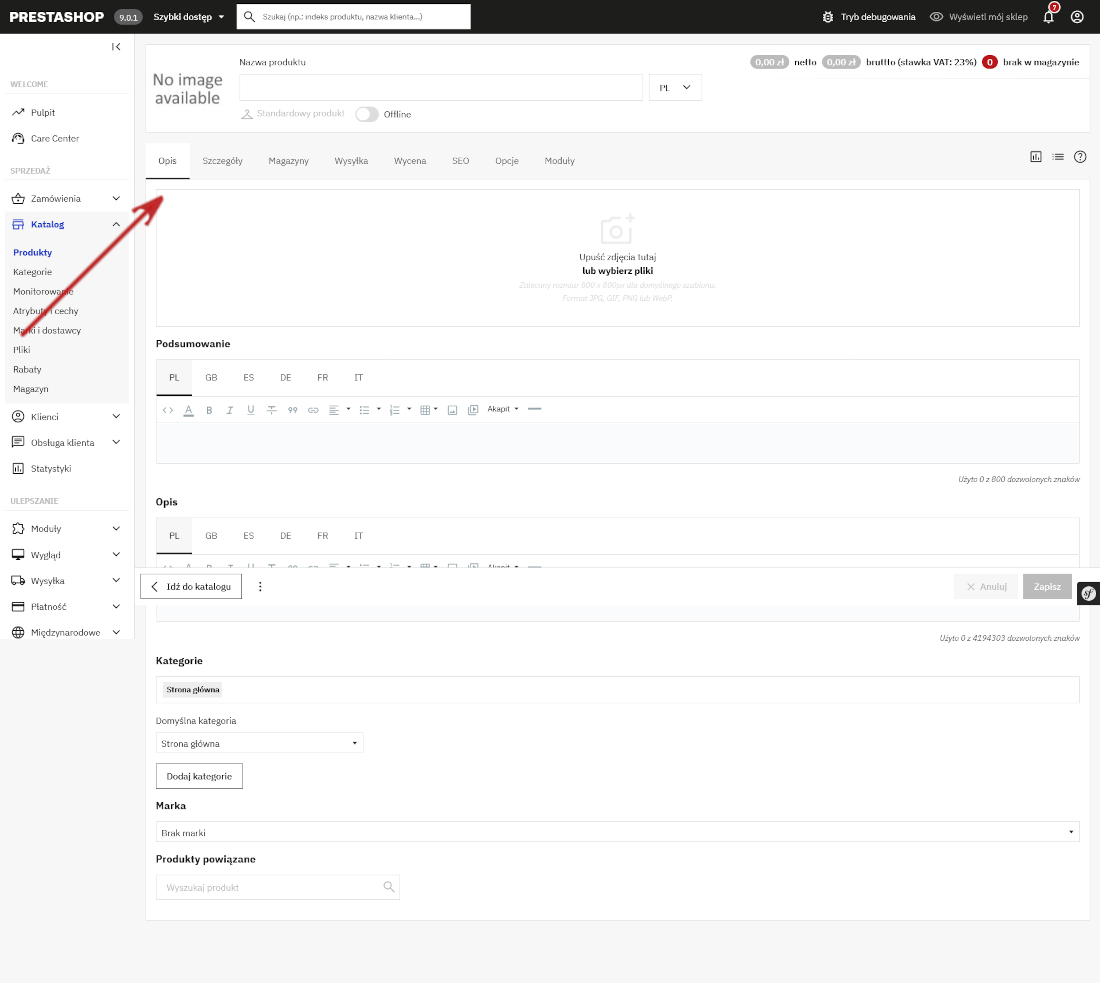
In this section, it is important to describe the product well - a clear description helps both customers and the subsequent presentation of the offer.
4. Adding photos
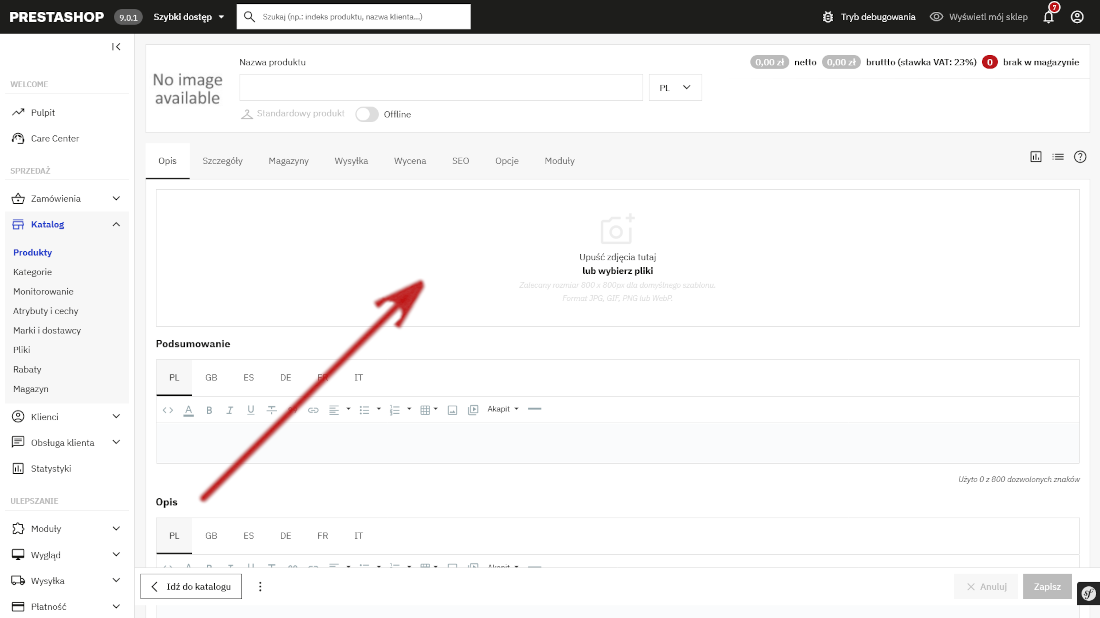
Product images are the foundation of your listing. Add images in .jpg or .png formats—a minimum of 800 x 800 pixels recommended—to ensure a high-quality presentation. You can add multiple images to showcase your product from different angles.
5. Prices and taxes
Go to the tab Price and specify:
- net and gross price;
- tax amount;
- special prices or promotions (optional).

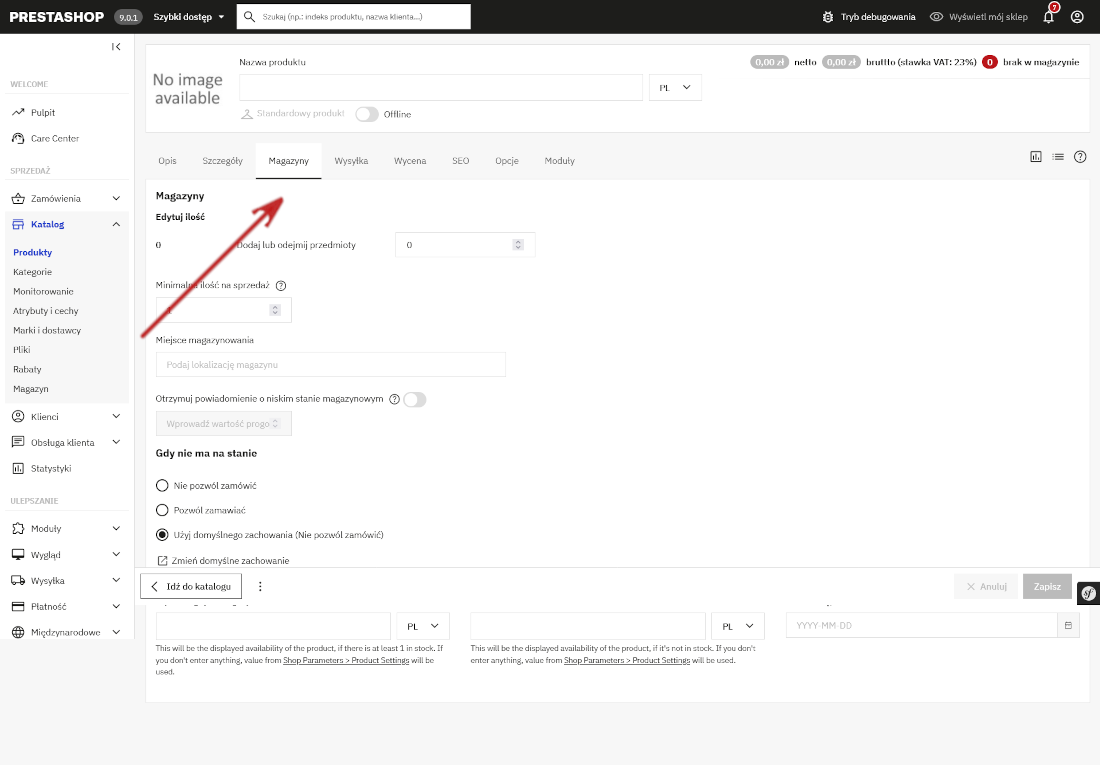
6. Stock and quantity
In the tab Quantities You determine the product's inventory status—how many units are available. You can also set inventory rules in the event of an out-of-stock item.
7. Shipping
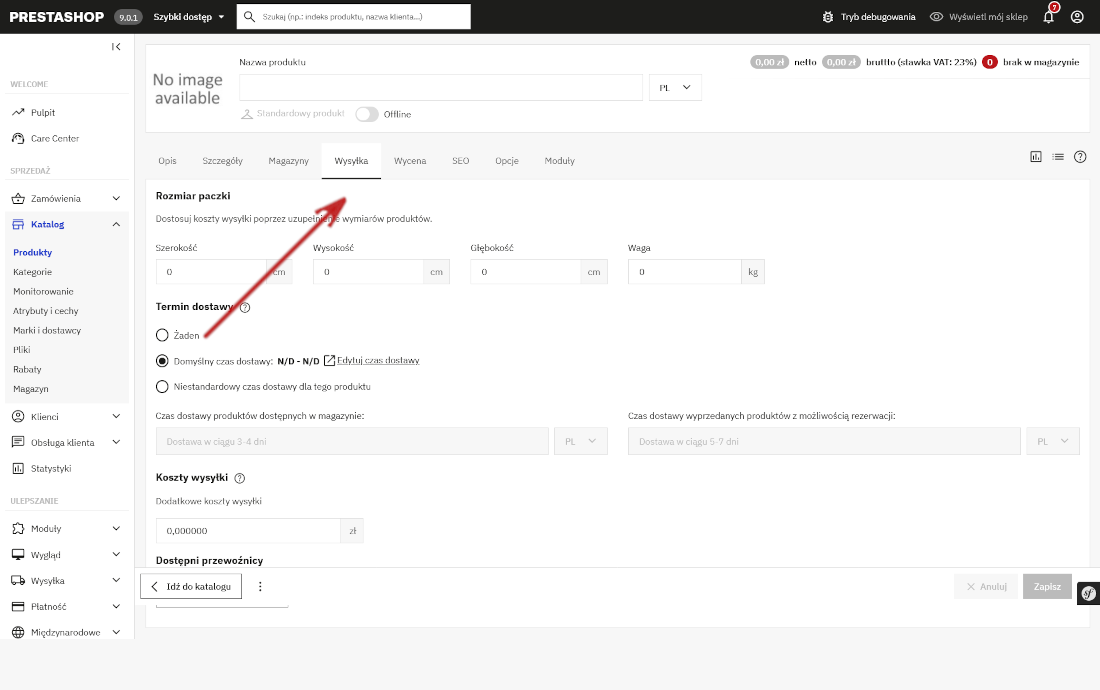
In the tab Shipment you define the logistic parameters:
- product weight;
- dimensions and dimensions;
- transport classification;
- shipping costs for different methods.
8. Virtual Products and Downloads
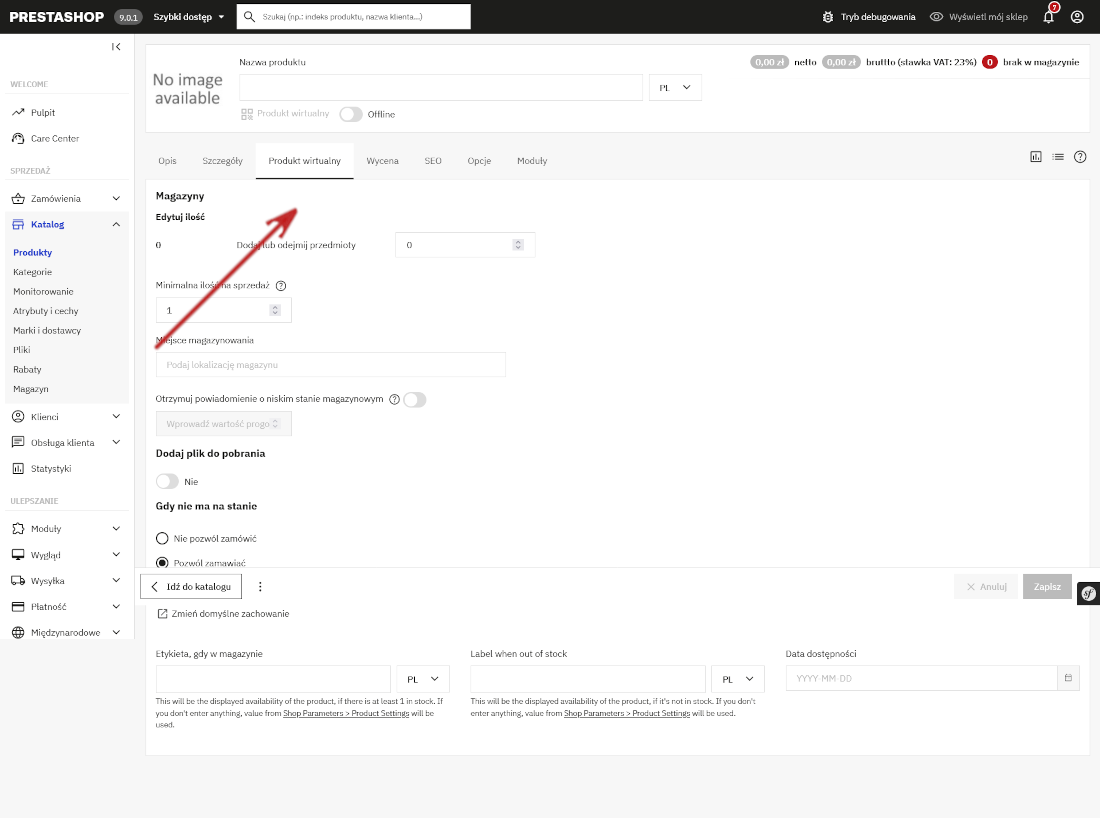
If you are selling a digital product or service, please select the type Virtual productInstead of the "Shipping" tab, a tab will appear where you can add downloads or service details—e.g., PDFs or links for the customer.
9. Products with variants and combinations
If the product has variants (colors, sizes, material), select the type Product with variantsA tab will appear in the panel Variants / Combinations, where you can:
- select attributes (e.g. color, size);
- generate combinations;
- set individual prices, quantities and photos for each combination.
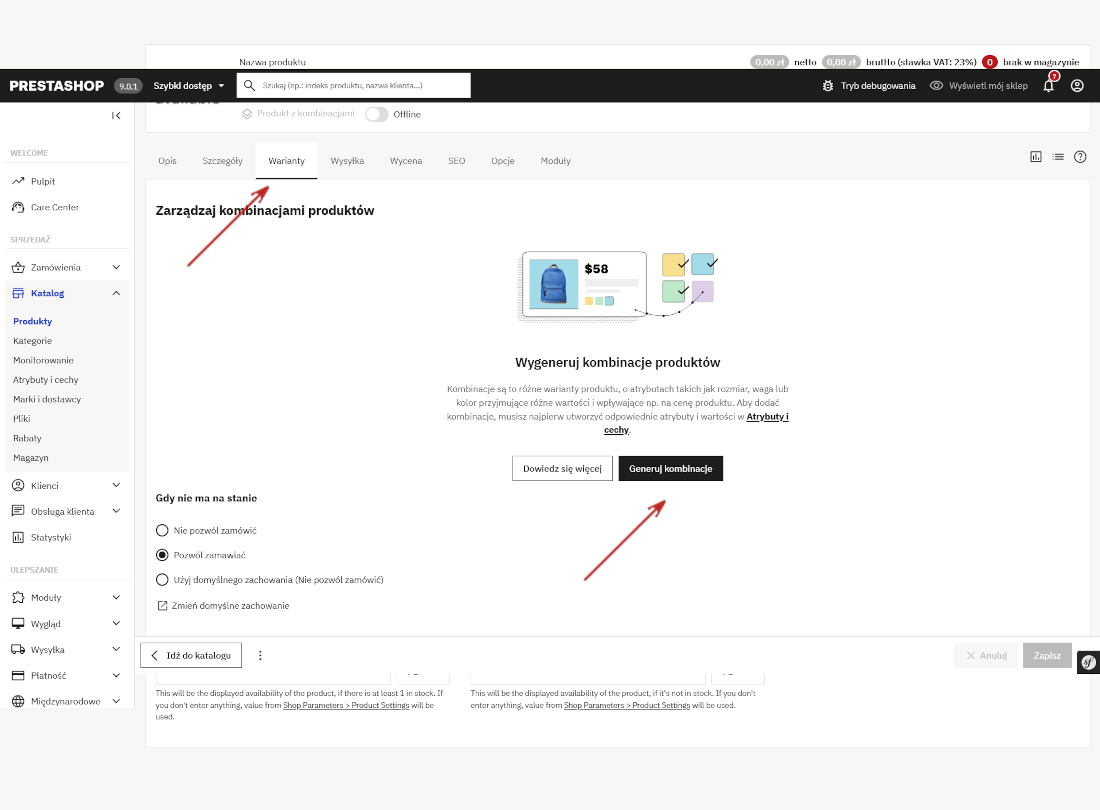
Make sure you have created the attributes and values in advance Catalog > Attributes & Characteristics, if they are not there.
10. Related Products
It's worth adding related products—this can increase cross-selling. Go to the appropriate section and search for products that should be displayed as suggestions to the customer.
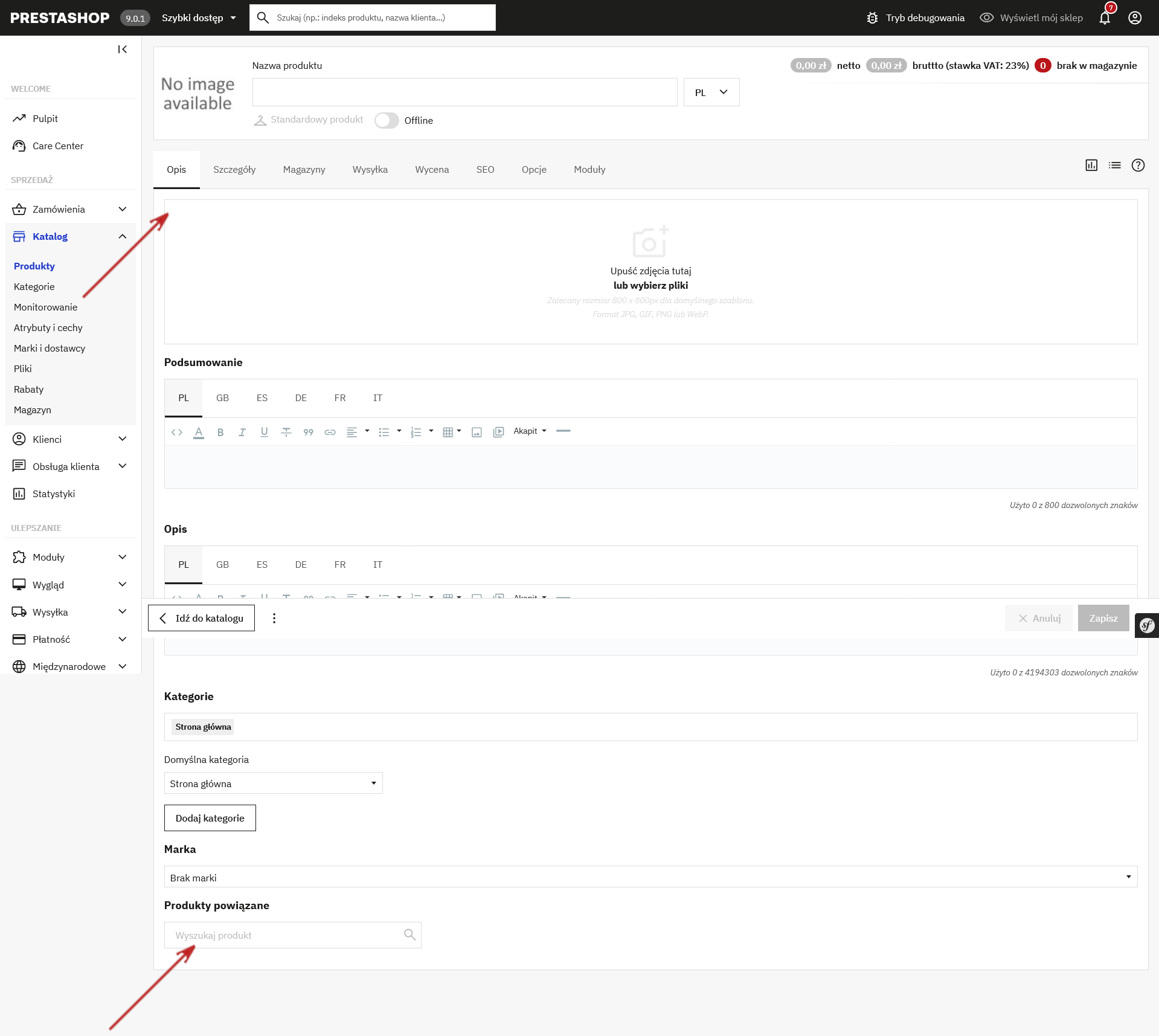
Remember that associations work only one way – that is, if you associate A with B, product B will appear as associated with product A in your store, but not the other way around automatically.
11. Save and publish
After entering all the data, confirm the changes with the button Save or Save and stayThe product will appear in the catalog and, if active, will be visible in the store to customers.
Summary
Adding products in PrestaShop 9 may seem complicated at first, but thanks to the logical division into tabs and options, you'll quickly learn how to add even advanced products with variants, downloads, and additional associations. You can configure all the key elements—from images, pricing, inventory, and special features—without leaving the admin panel.
Download the short checklist
The most common mistakes when adding products in PrestaShop 9
- No category assigned – a product without a category will not appear in the store.
- Inactive product – After saving, check if the product status is set to active.
- No price or tax – incorrect VAT configuration may result in incorrect prices.
- Zero stock – default settings may block sales.
- No photos – products without photos sell much worse.
- Poorly configured variants – no quantity for combination = no possibility of purchase.
- No shipping settings – weight and dimensions are required by carriers.
- Incorrect product type – e.g. a virtual product set as physical.
FAQ – frequently asked questions
Why is the product not visible in the store?
Most often, the product is inactive, has no assigned category or has zero stock.
Can I add a product without a photo?
Yes, but it's not recommended. Photos significantly influence purchasing decisions.
How to add product variants?
In the "Variants" section, create attributes (e.g. size, color) and then assign prices and quantities to them.
Does a virtual product require shipping?
No. Virtual products do not require shipping or warehouse settings.
Can I edit a product after publication?
Yes. All product data can be edited at any time.
Related products
-
PrestaShop Technical Support and Maintenance – BASIC PACKAGE
Price: zł790.00Basic technical support package for PrestaShop shops. Bug fixes, updates,... -
PrestaShop shop management – BASIC PACKAGE
Price: zł499.00Basic PrestaShop shop management package. 180 minutes of support per month,... -
Effective virus removal from PrestaShop: code, database, blacklists, browsers. Comprehensive diagnostics and security measures.
Price: zł4,000.00A comprehensive virus removal service for your PrestaShop shop. We check the...